Start here
Get ready to log offline
Add Fieldbook to your home screen, and prepare each device before you go out.
Fieldbook saves everything on your device first. Logging, editing, searching, the worked-before check and the dashboard all operate with no signal. When you have a connection again, Fieldbook syncs your changes.
Add Fieldbook to your home screen
You can install Fieldbook from your browser. It then opens in its own window, like an app.
- iPhone and iPad (Safari): select the Share button, then Add to Home Screen.
- Android (Chrome): open the browser menu, then select Install app or Add to Home screen.
- Computer (Chrome or Edge): select the install button in the address bar.
Prepare each device before you go out
Fieldbook keeps a copy of your log on each device that you use. A device must be online once to get that copy.
- Open Fieldbook on each device that you will log from.
- Wait until the cloud icon at the top shows that everything is synced.
- Open the logbook that you will use.
Offline reference data
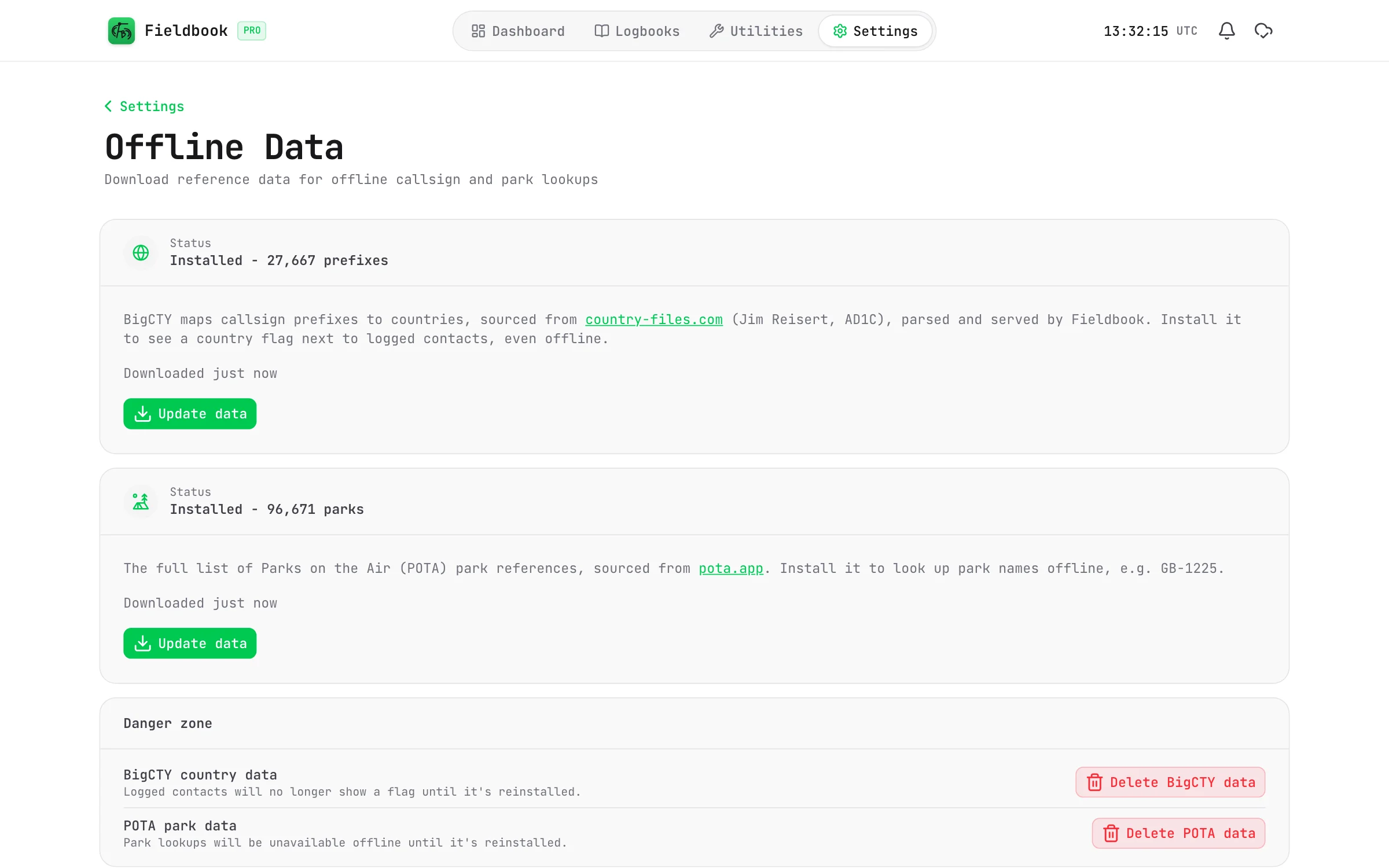
Fieldbook downloads two sets of reference data the first time that you sign in:
- BigCTY country data: this gives each contact a country and a flag.
- POTA park data: this lets you search for parks by name or reference.
To update this data or download it again, go to Settings > Offline Data.
What needs a connection
These features need a connection:
- QRZ lookups.
- POTA spots and spotting yourself.
- Band conditions.
- Map tiles.
If you log a contact offline, it has no QRZ details. You can add them later. Refer to QRZ lookups.
To find out how sync operates, refer to Sync and offline.