Start here
Log your first contact
Type a callsign, select Log contact, and the contact is saved.
Open a logbook from the Logbooks page. The logbook has three parts:
- Station setup: your band, frequency, mode and more.
- Log a contact: the form for each new contact.
- Contacts: every contact in this logbook, latest first.
Fieldbook
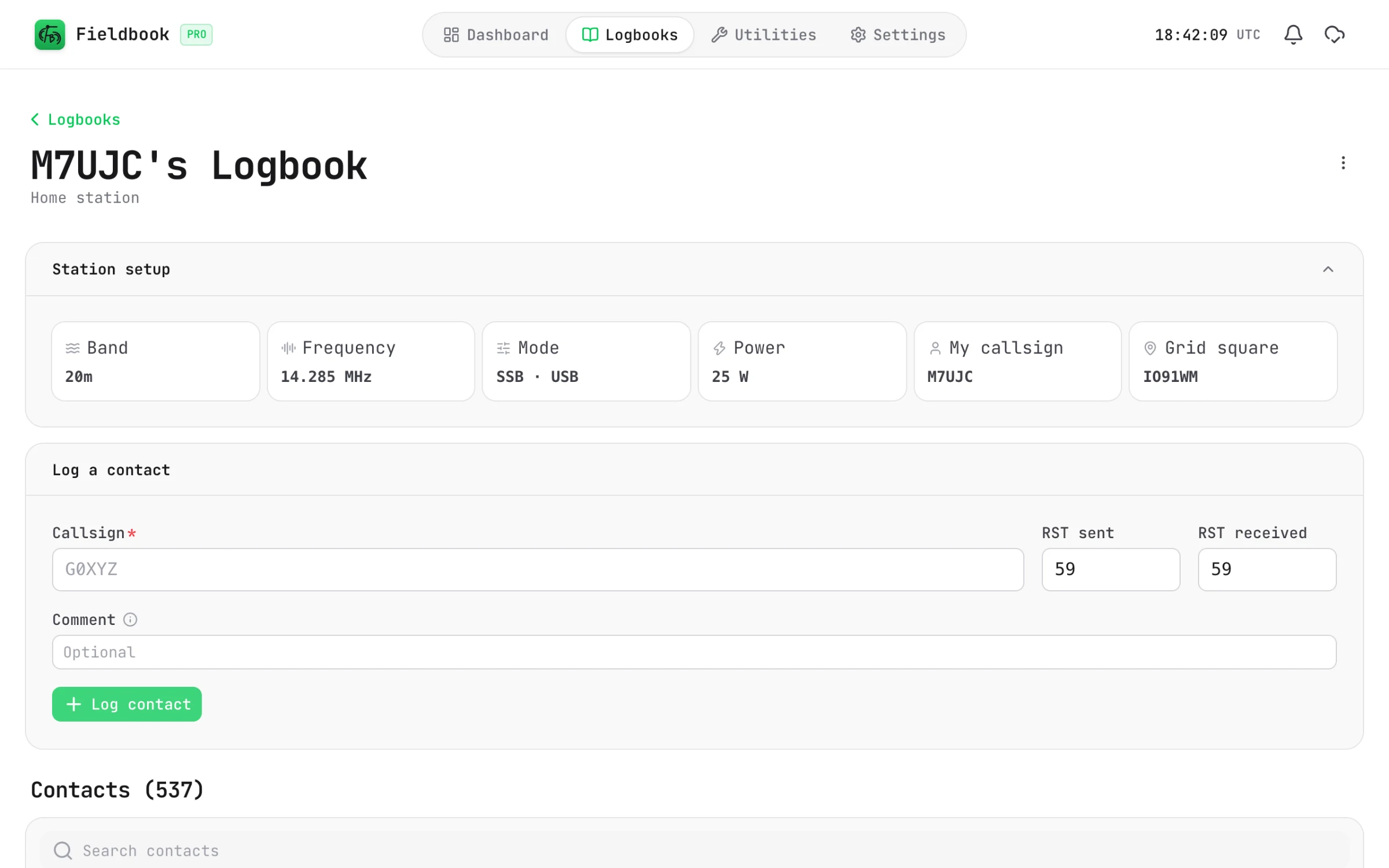
Check your station setup
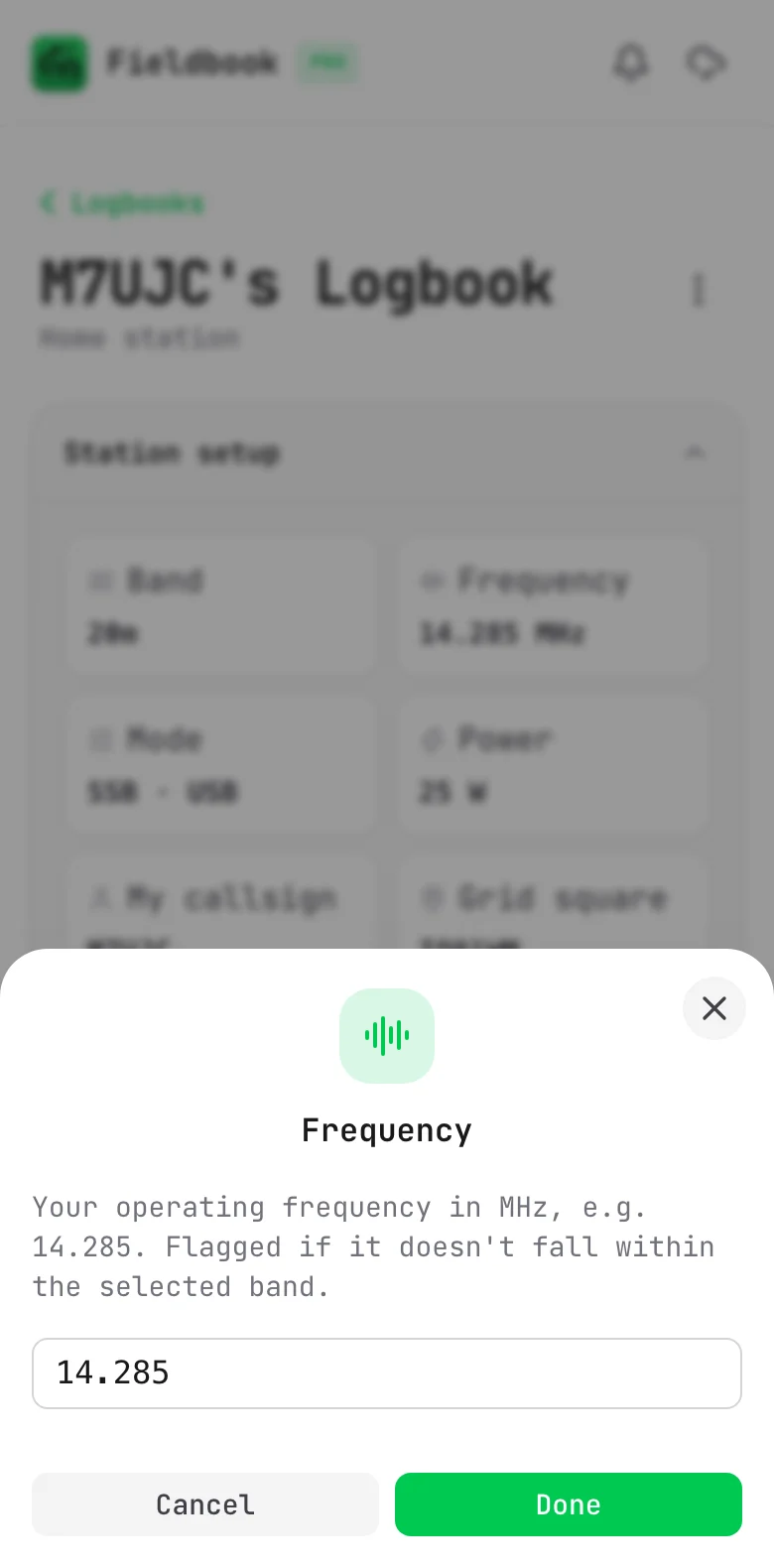
Make sure that the station setup agrees with your radio. To change a value, select it, type the new value and select Done.
If the frequency is not in the band that you selected, Fieldbook shows the value in red. You cannot log a contact until you correct it.
Log the contact
- Type the callsign of the other station.
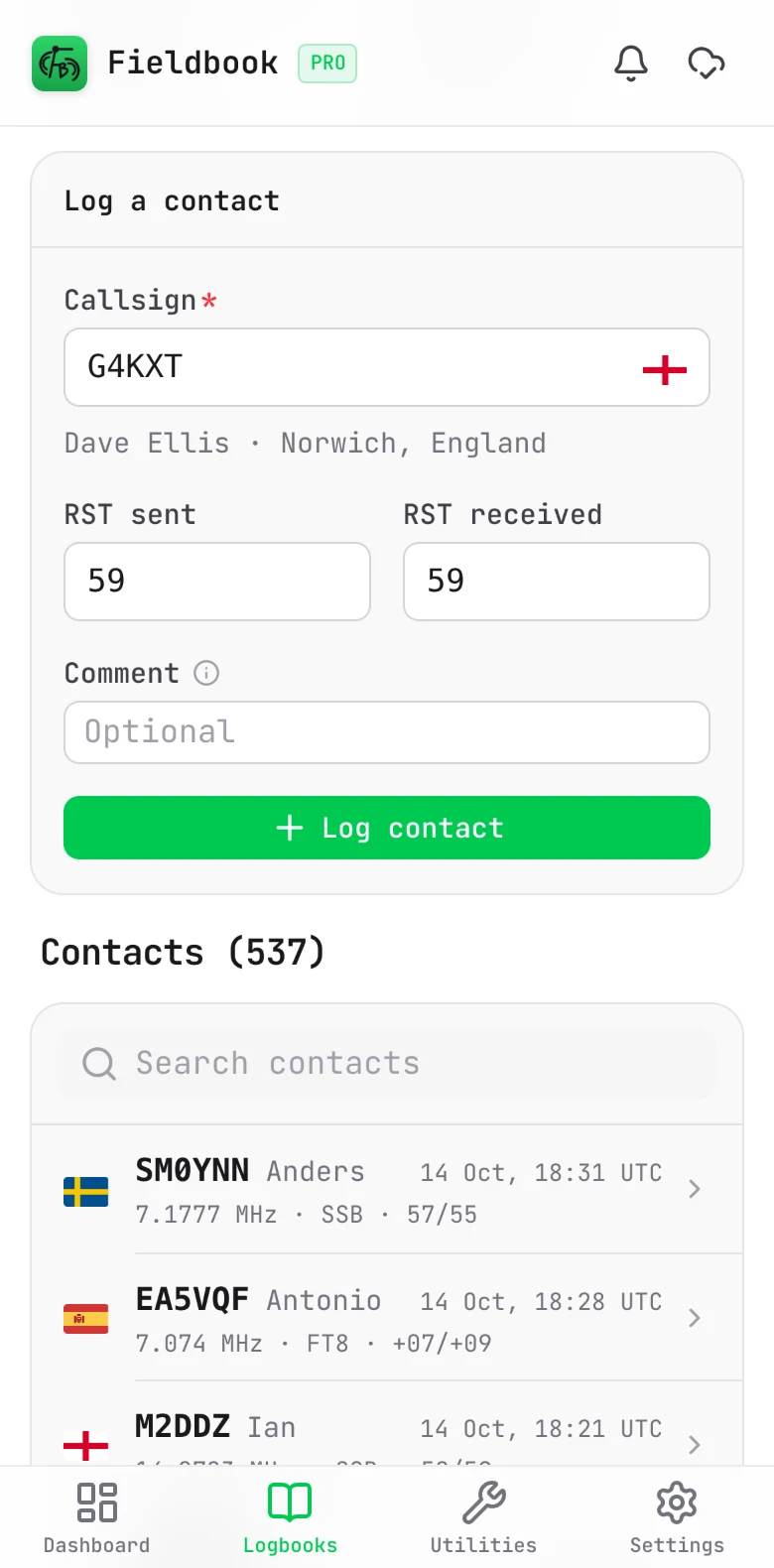
- Look below the callsign. Fieldbook shows the name and location of the operator from QRZ.com.
- Look in the callsign field. An icon shows if you worked the station before. Refer to Logging contacts.
- Change RST sent and RST received if necessary. They start at 59, or at 599 for CW.
- Optionally, type a Comment.
- Select Log contact.
Fieldbook saves the contact with the time in UTC. It also adds your station setup, and the name, grid square and address from QRZ. The form is then clear and ready for the next callsign.
The comment goes to other logging tools when you export your log. For example, it can show on a QSL card. For private notes, edit the contact and use the Notes field. Refer to Logging contacts.