Logging
Parks on the Air
Log a POTA activation, track your QSO count, work park to park, and export an ADIF file for each activation.
A POTA logbook adds park references to your contacts. Fieldbook includes the full list of POTA parks, so you can search for a park even when you are offline.
Make a POTA logbook
- Create a logbook. Refer to Create a logbook.
- Set the Template to POTA.
- Select Save.
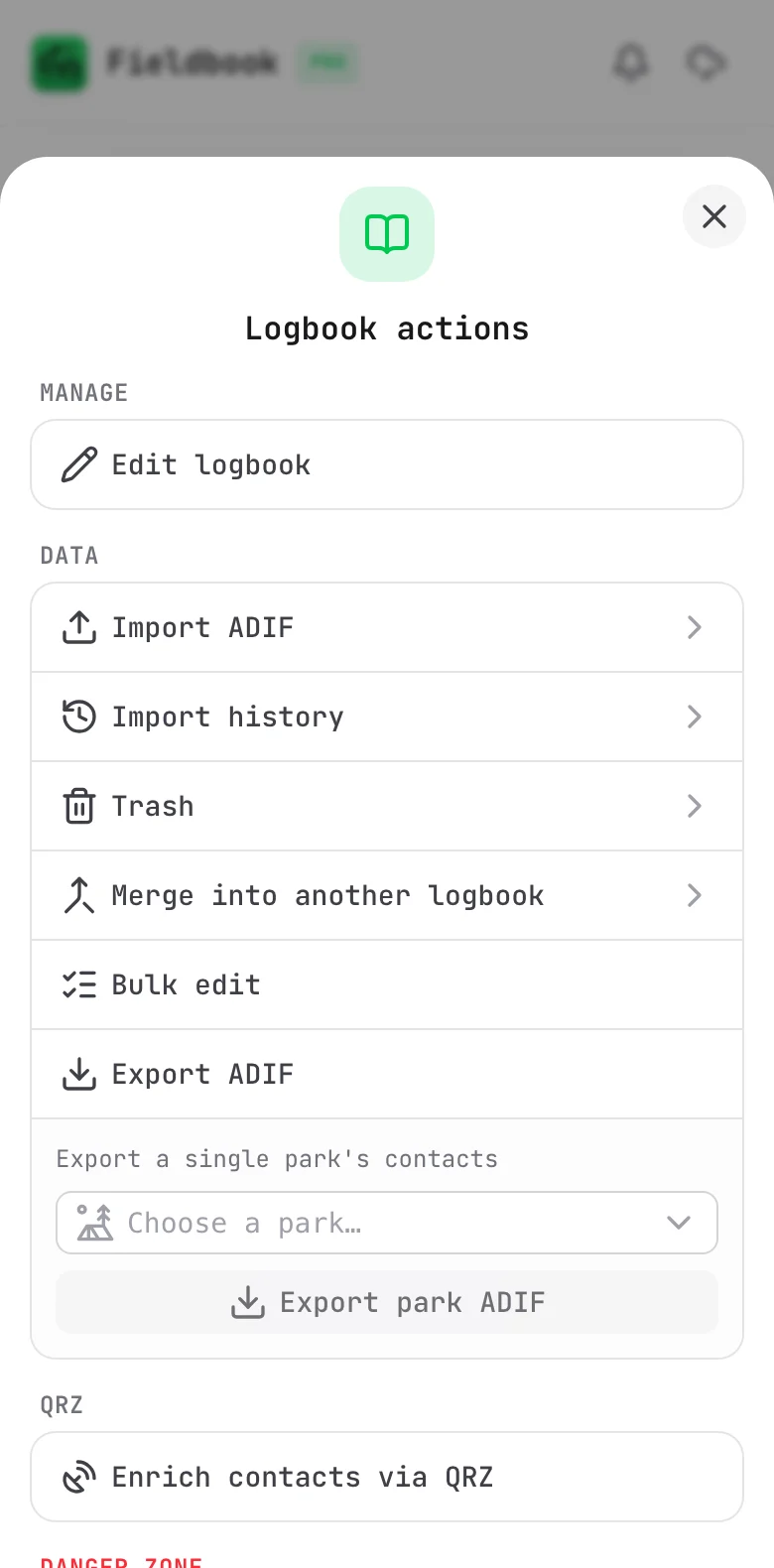
You can also change an existing logbook to the POTA template. Select Edit logbook in the logbook menu.
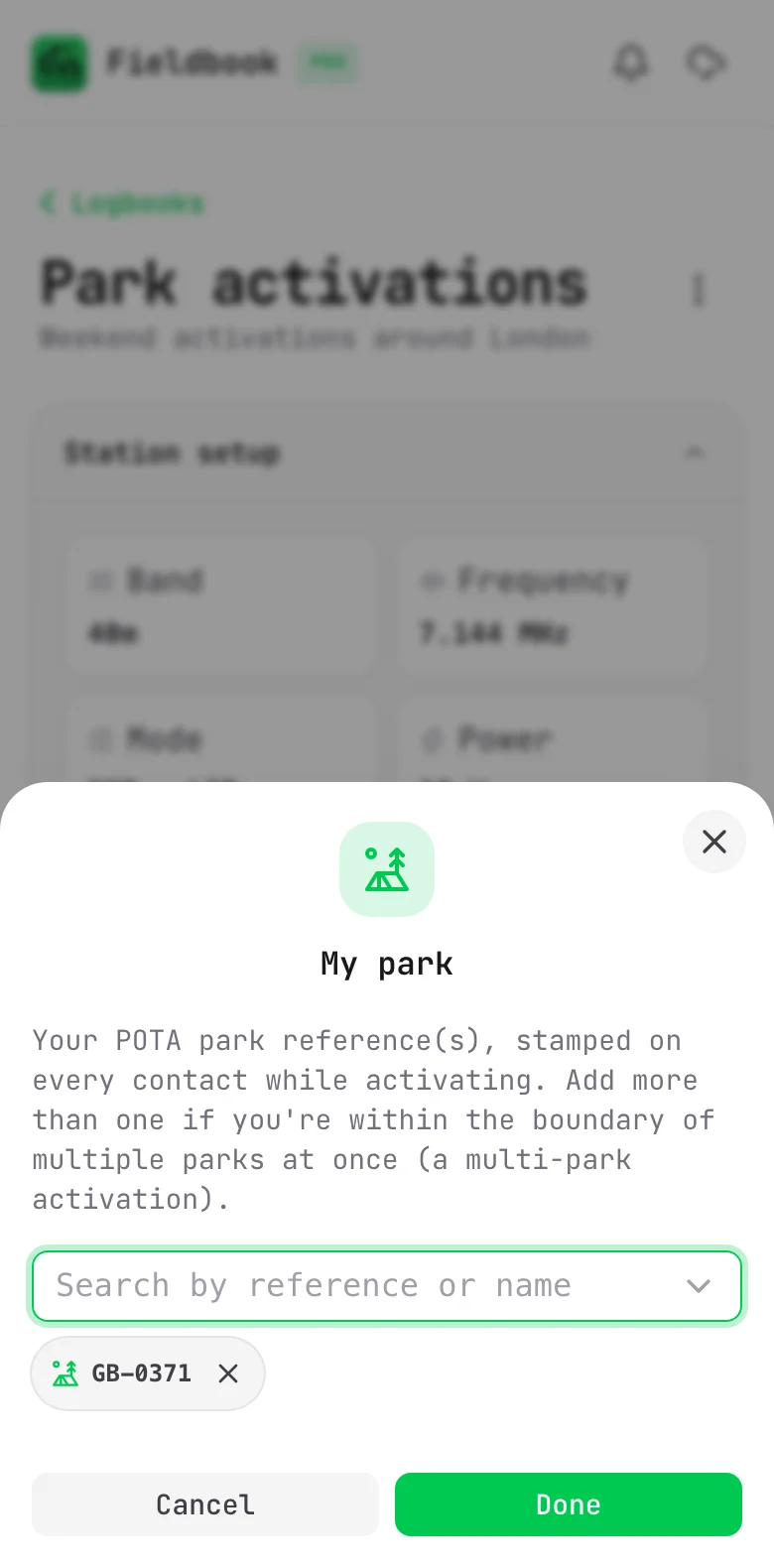
Set your park
- Open the logbook.
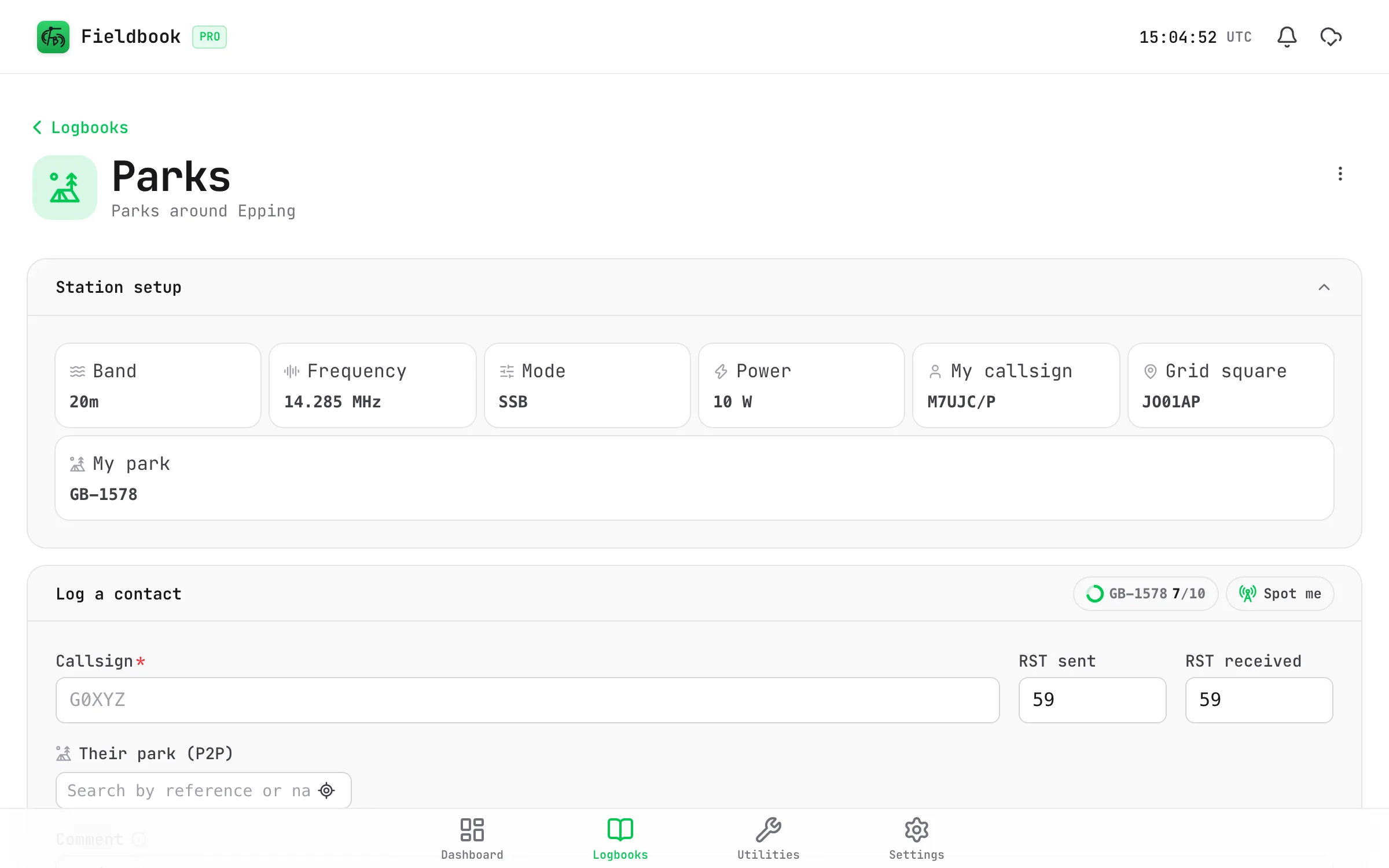
- In the station setup, select My park.
- Type the park reference or name, for example GB-0371.
- Select the park from the list.
- Select Done.
Fieldbook adds your park to each contact that you log. If you are in more than one park at the same time, add each park. This is a multi-park activation.
Find parks near you
- In the park field, select the location button.
- Let Fieldbook use your location.
- Select a park from the list. The list shows the nearest active parks first, with the distance to each park.
Track your activation
When you set your park, a counter shows at the top of Log a contact, next to Spot me. It shows the number of QSOs for today, for example 7/10. For a multi-park activation, it shows a count for each park.
An activation is valid at 10 QSOs. When you log the 10th QSO, the counter becomes green. On Android, your phone also vibrates.
To see more, select the counter. For each of your parks, Fieldbook shows:
- The number of QSOs that you still need.
- The number of park to park contacts.
- The number of duplicates.
POTA counts a QSO with the same station on the same band and mode only one time. Fieldbook counts in the same way, and does not count the duplicates.
To download the file for today, select the counter, then select Export. Refer to Export an activation for POTA.
Spot yourself
A spot tells hunters on pota.app where to find you.
- In the station setup, set your park, frequency and mode.
- In Log a contact, select Spot me.
- Optional: type a comment, for example "QRP".
- Select Spot.
Fieldbook spots your first park. For a multi-park activation, it adds all your parks to the comment, for example "2-fer: GB-0371 GB-0372".
Find new parks to hunt
With Pro, Fieldbook shows New park next to a park that you have not worked before. It uses your contacts from all your logbooks, so it works offline.
The badge shows:
- In the log form, below Their park (P2P), when the callsign is in the spots.
- On each spot in POTA spots.
Log a park to park contact
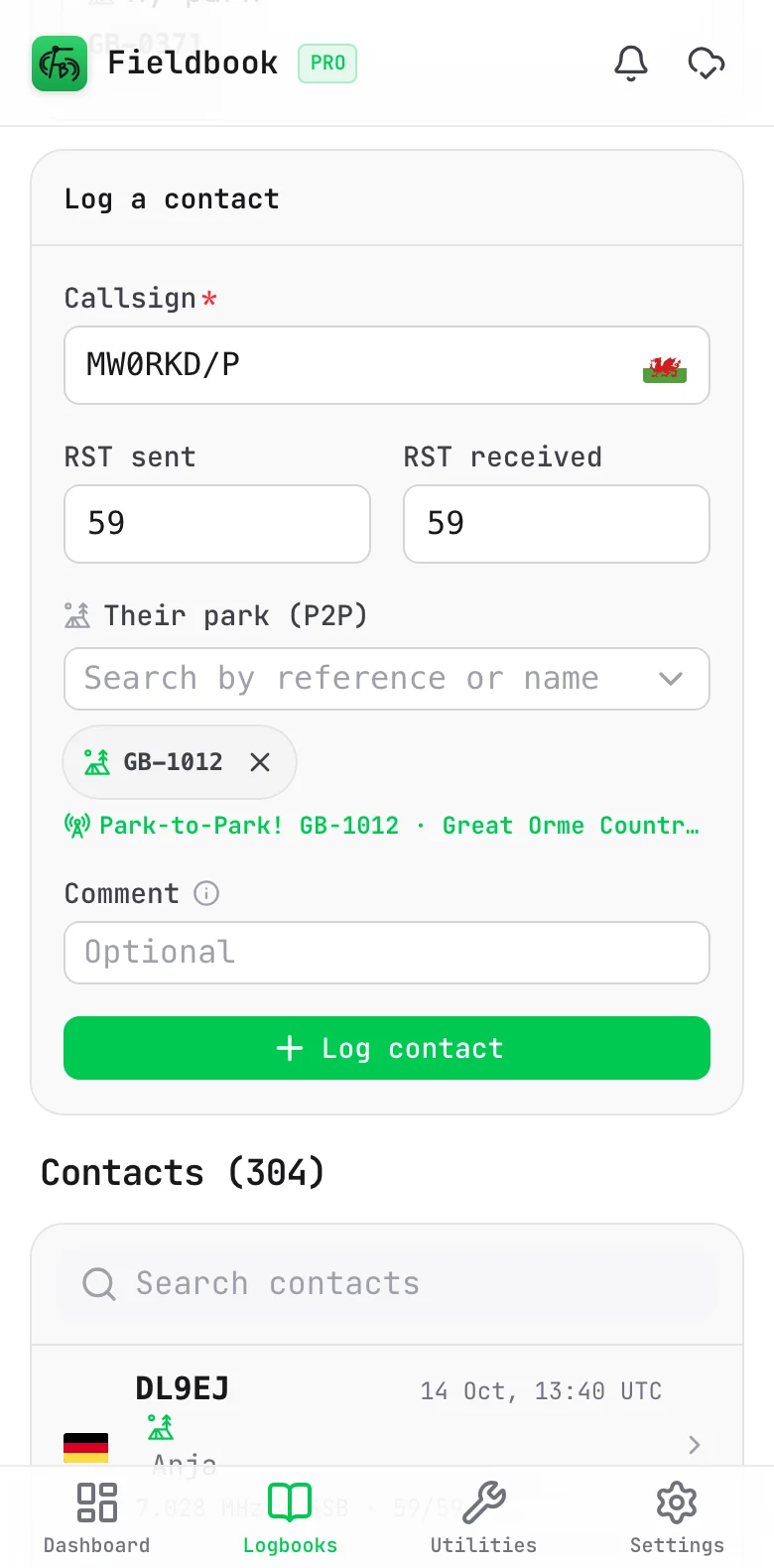
When you work another activator, add their park in Their park (P2P).
Fieldbook can do this for you. When the callsign that you type is in the live POTA spots, Fieldbook:
- Fills in their park.
- Shows the park, frequency and mode below the field.
- Shows Park-to-Park! if you have also set your own park.
To find activators to work, refer to POTA spots.
Export an activation for POTA
POTA wants one ADIF file for each park on each UTC day. Fieldbook names each file in the format that POTA asks for, for example M7UJC_P@GB-0371-20261102.adi.
To export today's activation, select the counter at the top of Log a contact, then select Export.
To export an earlier activation (Pro):
- Open the logbook menu.
- Select Activations.
- Find the park and the date.
- Select the download button.
The Activations page shows your activations by month. It also shows how many activations are valid, how many parks you have activated and how many parks you have hunted.
Upload each file to pota.app.
Export all of a park's contacts
To export all the contacts from one park in one file, for all days:
- Open the logbook menu.
- Below Export ADIF, open Choose a park and select the park.
- Select Export to download the file.