Start here
Create a logbook
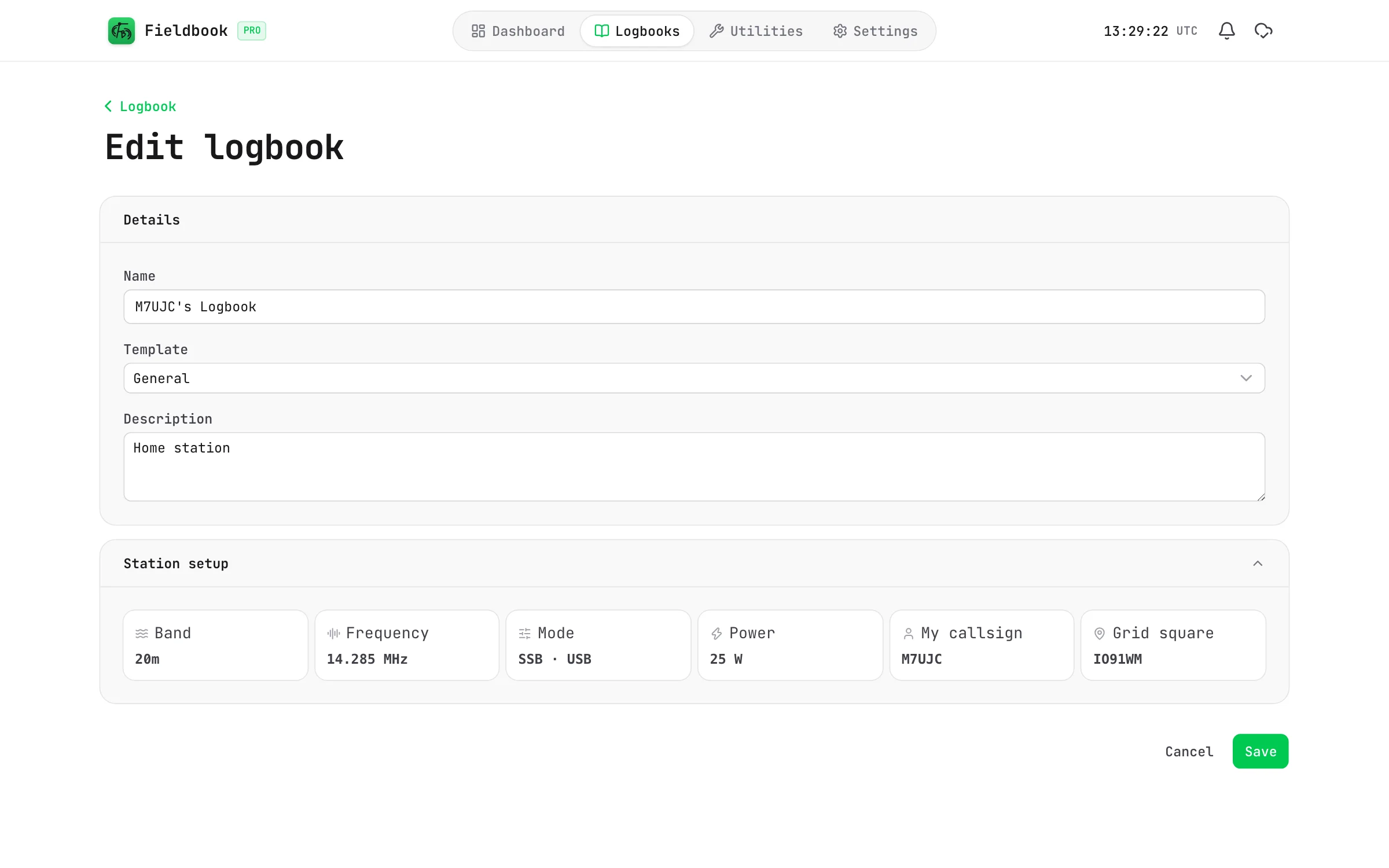
Make a logbook, pick a template and set up your station.
A logbook holds a group of contacts. You can have as many logbooks as you want, on every plan. For example, you can have one for your home station and one for your park activations.
Create the logbook
- Select Logbooks in the navigation bar.
- Select New logbook.
Fieldbook makes the logbook and opens its settings. It names the logbook after your callsign, for example "M7UJC's Logbook".
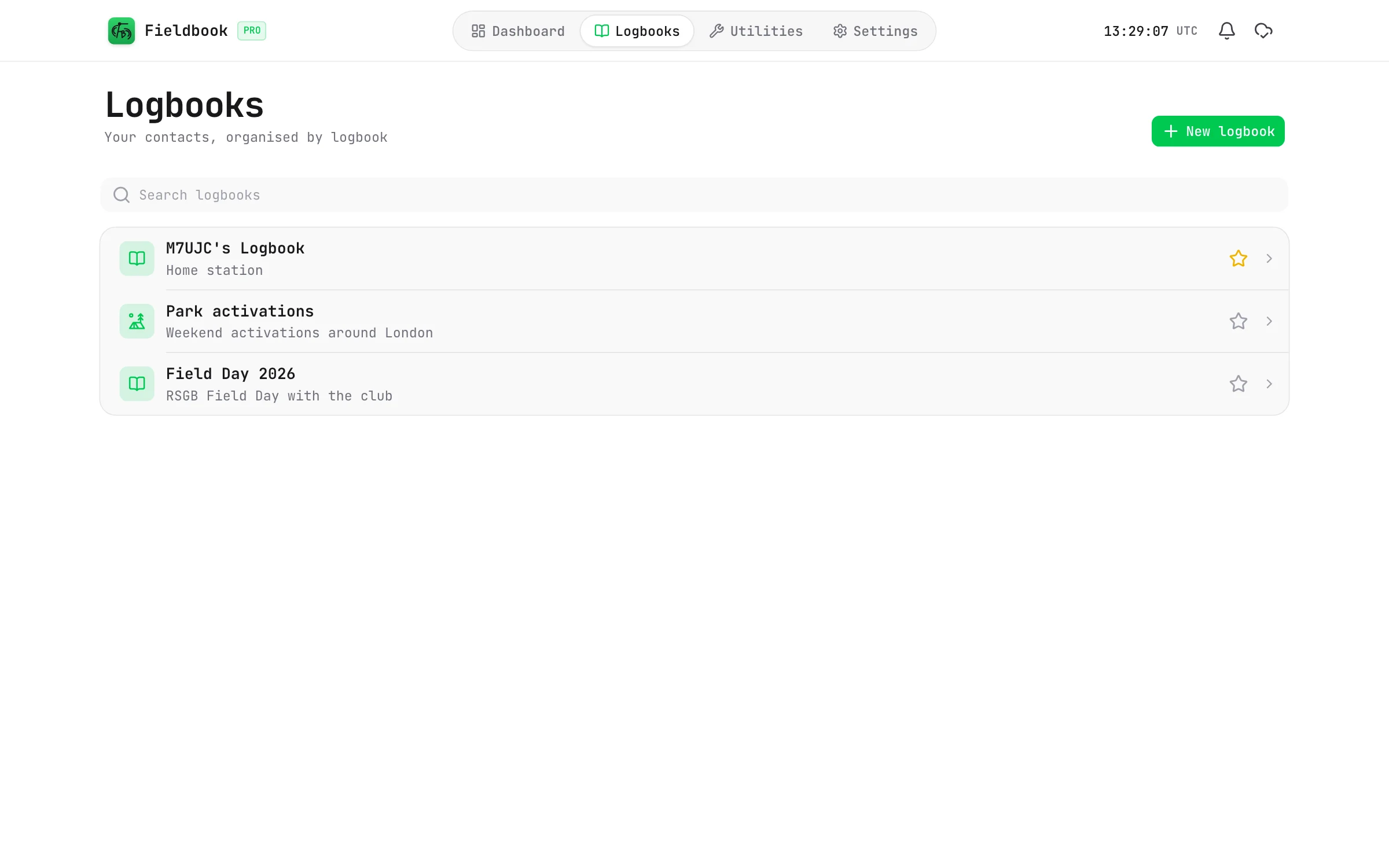
Set the details
- Type a Name for the logbook.
- Select a Template:
- General is a standard logbook.
- POTA adds park references for Parks on the Air. Refer to Parks on the Air.
- Optionally, type a Description. It shows below the name in your list of logbooks.
- Optionally, select the icon at the top to change the icon and its colour.
Set up your station
The station setup holds the values that stay the same from one contact to the next. Fieldbook adds them to each contact that you log in this logbook. Set them once, and change them only when you change band or move.
| Field | What it is |
|---|---|
| Band | The band you operate on, for example 20m. |
| Frequency | Your frequency in MHz, for example 14.285. Fieldbook selects the band for you. |
| Mode | The mode, for example SSB, CW or FT8, and the submode if there is one. |
| Power | Your transmit power in watts. |
| My callsign | Your callsign. Change it for portable operation, for example M7UJC/P. |
| Grid square | Your Maidenhead locator. Select the locate button to fill it in from your location. |
If you use QRZ Logbook Sync, the QRZ Logbook Sync section sets if this logbook uploads to QRZ. Refer to Choose which logbooks upload.
Select Save when you are done.