Logging
Logging contacts
Log, find, edit and delete the contacts in a logbook.
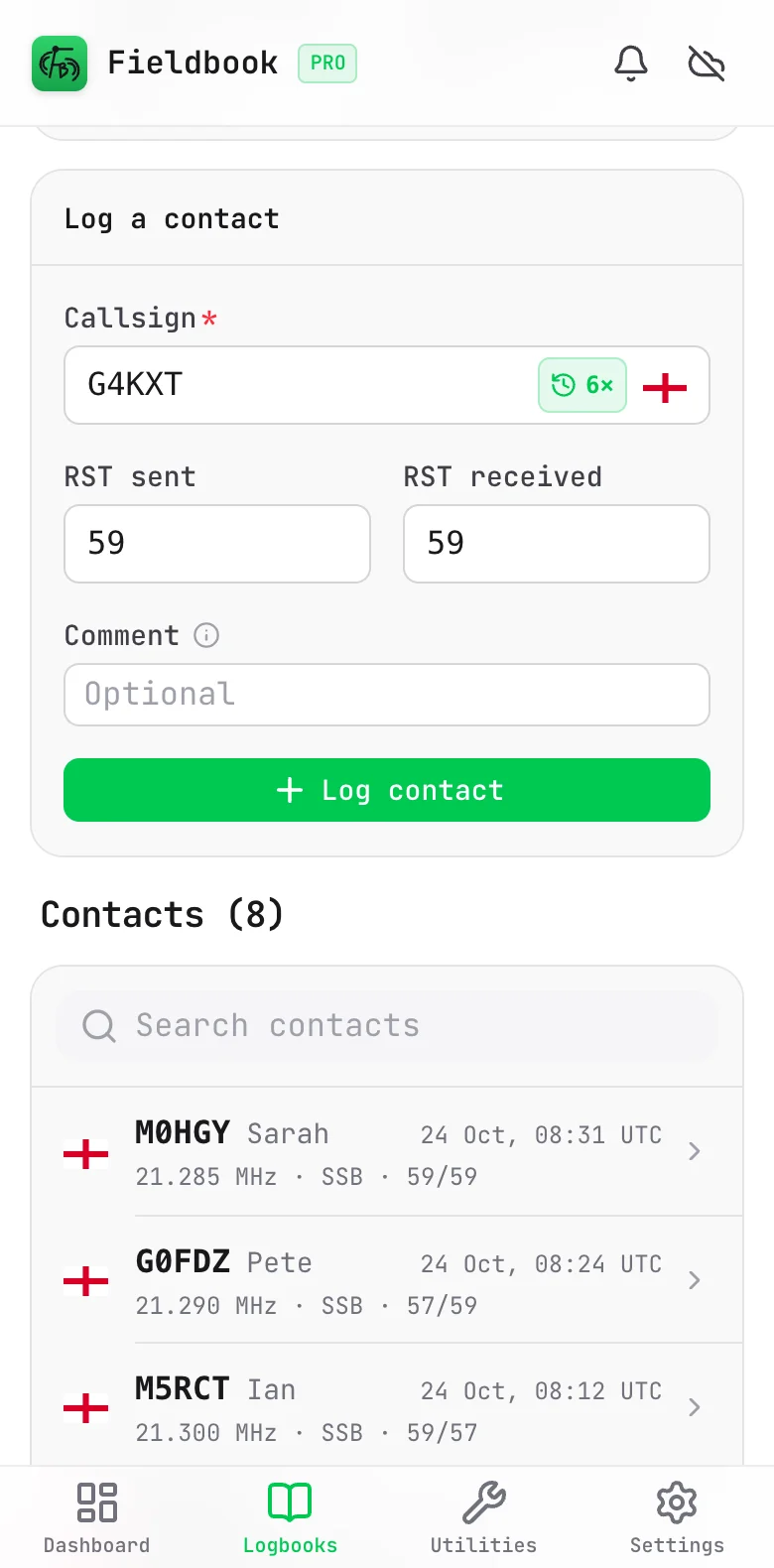
To log a contact, type the callsign and select Log contact. For the full procedure, refer to Log your first contact.
See if you worked a station before
When you type a callsign, Fieldbook looks for that station in all of your logbooks. It shows a small icon in the callsign field, next to the flag:
- A sparkle: this is your first contact with the station.
- A green count, for example 7×: you worked the station that number of times before.
- An amber count: you already logged the station on this band and mode in this logbook today.
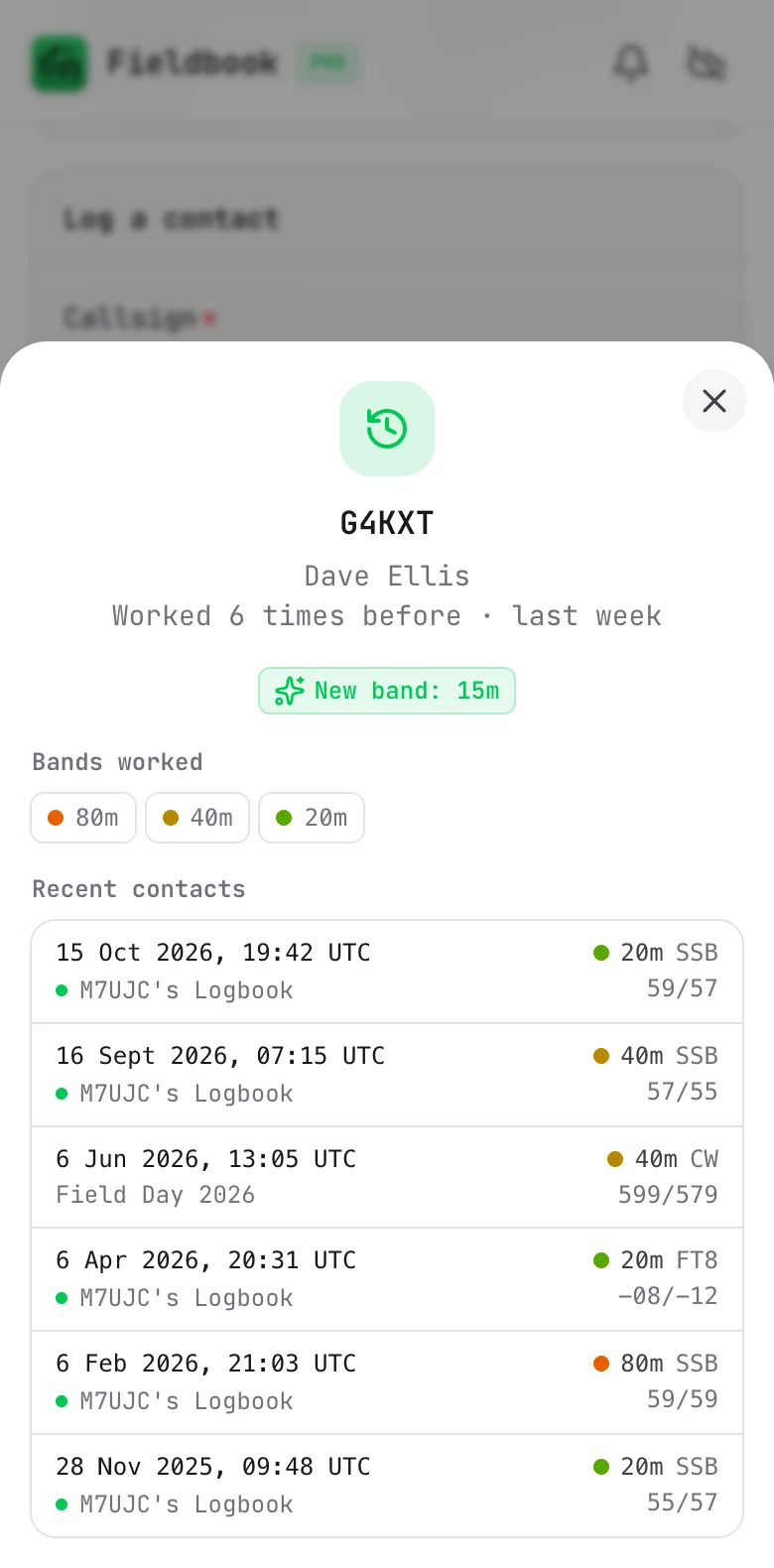
Select the count to see the details:
- When you last worked the station, and the name of the operator.
- New band or New mode, if you never worked the station on your current band or mode.
- The bands on which you worked the station.
- Your last 10 contacts with the station, and the logbook of each. A green dot shows the logbook that is open.
Fieldbook treats a callsign with a portable suffix as the same station. For example, M7UJC/P and M7UJC are the same station.
Find a contact
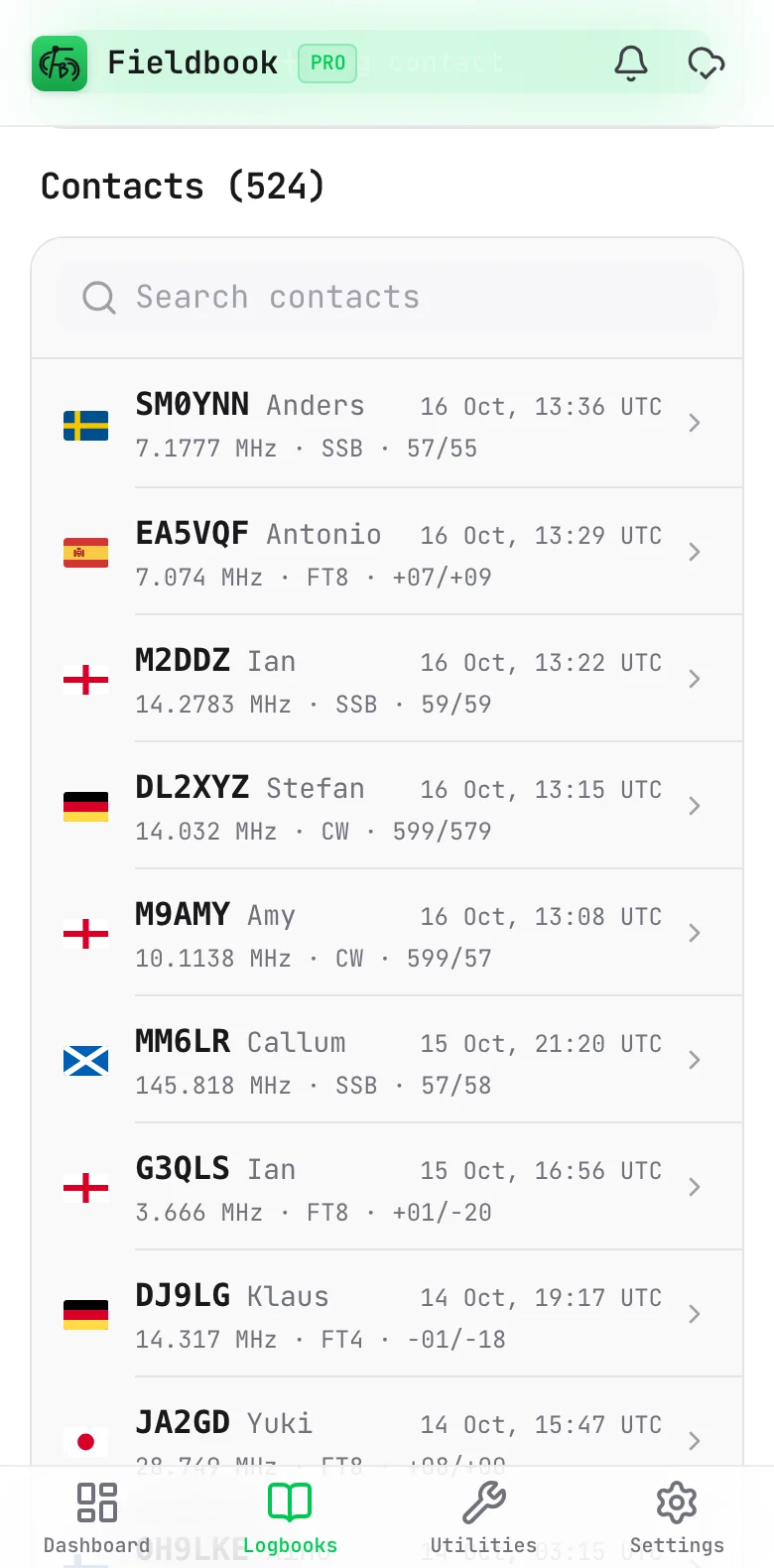
The Contacts list below the log form shows every contact in the logbook. The latest contact is at the top.
- Each row shows the callsign, name, time, frequency, mode and signal reports.
- The flag shows the country of the station, from the callsign.
- To find a contact, type a callsign, name or grid square in Search contacts.
Edit a contact
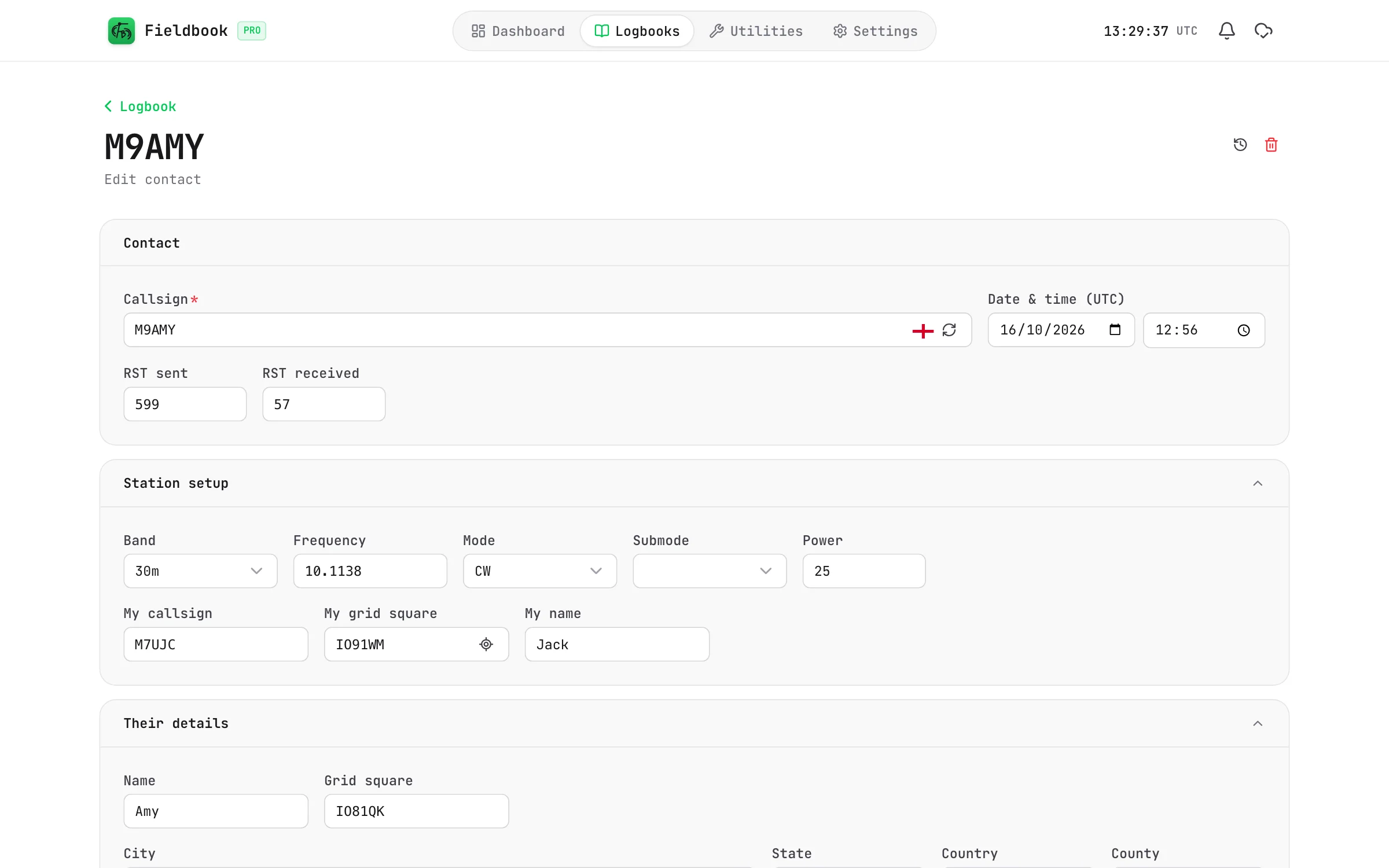
Select a contact in the list to edit it. The edit page has these sections:
- Contact: the callsign, the date and time in UTC, and the signal reports. Select the refresh button in the callsign field to get the QRZ details again.
- Station setup: the band, frequency, mode, power and your own details for this contact.
- Their details: the name, grid square and address of the other operator.
- Park references: in a POTA logbook only.
- Notes: the comment, and your private notes.
Select Save changes when you are done.
See the changes to a contact
Select the history button at the top of the edit page. Refer to Version history.
Delete a contact
- Open the contact.
- Select the delete button at the top of the page.
- Select the button to confirm.
Fieldbook moves the contact to the Trash. It keeps the contact for 30 days. With Pro, you can restore it in this time. Refer to Trash.
Change many contacts at once
To change the band, mode or other station values of many contacts, refer to Bulk edit.