Logging Pro
QRZ Logbook Sync
Send every contact you log to your QRZ.com logbook automatically.
With QRZ Logbook Sync, Fieldbook sends your contacts to your QRZ.com logbook for you. Connect your QRZ.com logbook once. After that, each contact that you log or edit goes to QRZ automatically. The contacts that you already have go to QRZ too.
Before you start
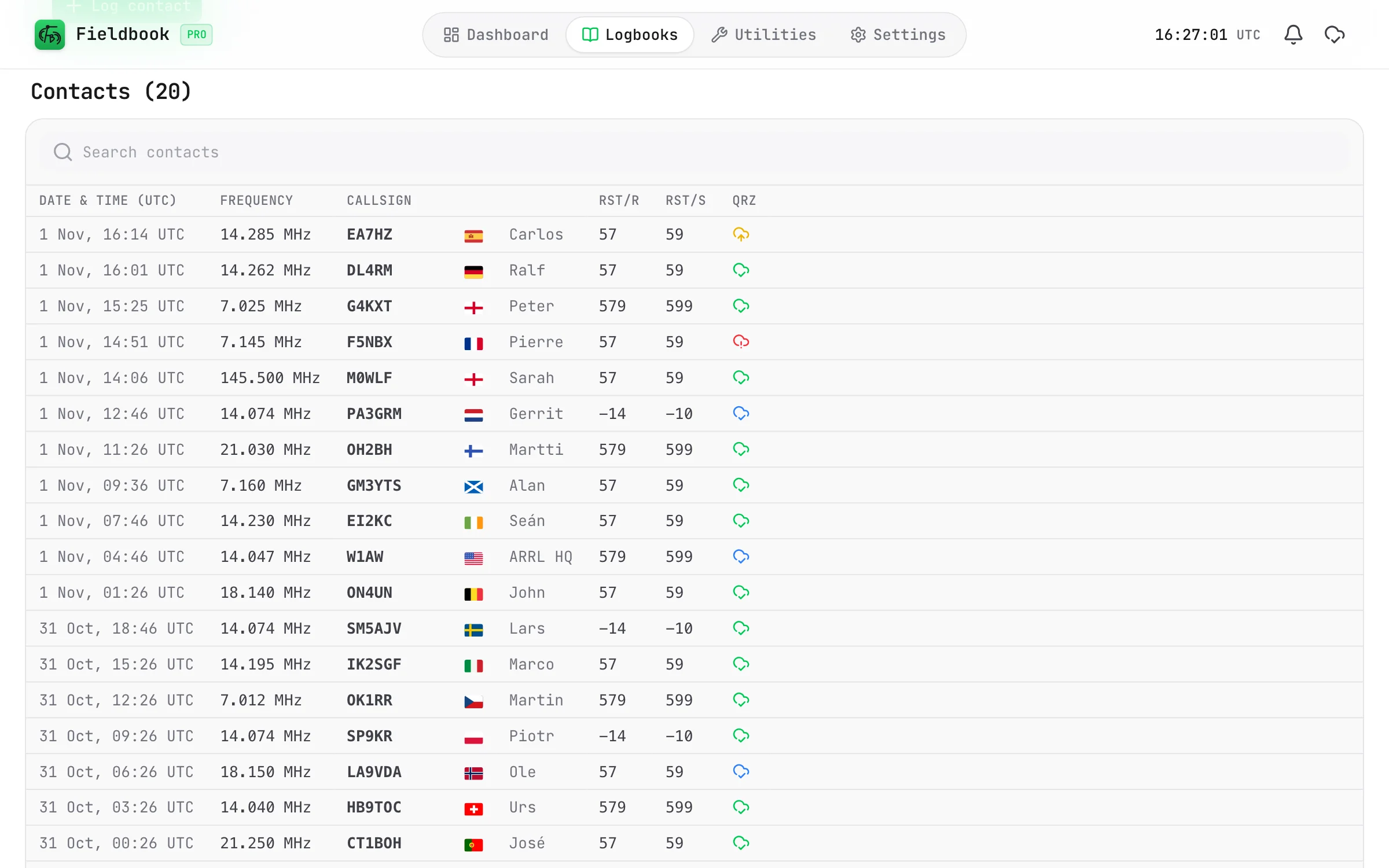
You need the API key of your QRZ.com logbook. The key tells QRZ which logbook gets your QSOs.
- Sign in at logbook.qrz.com.
- Open Settings for the logbook that you want to upload to.
- Copy the API Access Key.
Connect your QRZ.com logbook
- In Fieldbook, go to Settings > QRZ.
- Find the QRZ Logbook Sync section.
- Paste your API key.
- Select Connect QRZ Logbook.
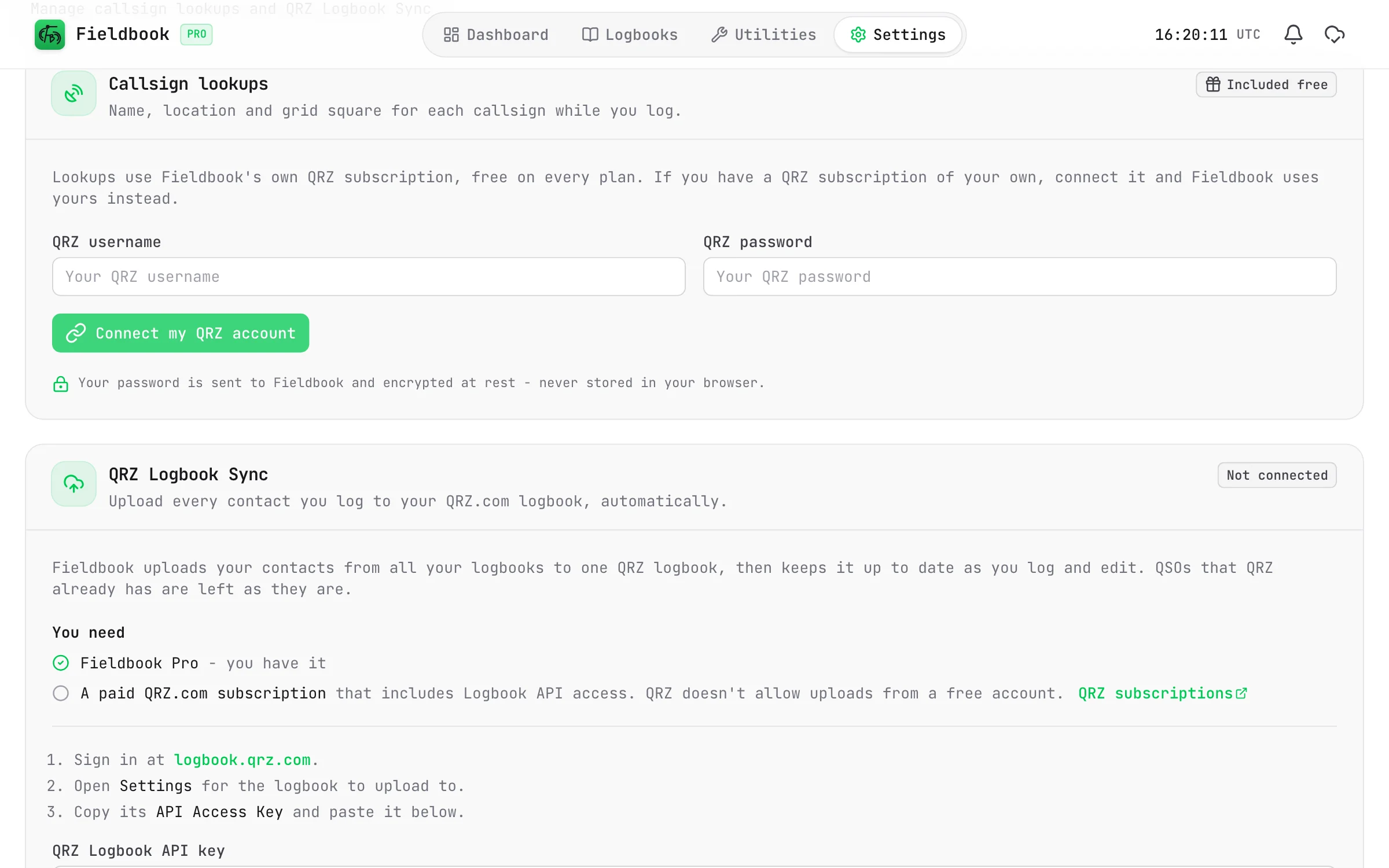
Fieldbook checks the key with QRZ before it saves it. The key is encrypted and kept on the Fieldbook server. It is never kept in your browser.
Fieldbook then starts to send your contacts to QRZ. This occurs in the background, so you can close the page. Contacts from all your Fieldbook logbooks go to the one QRZ.com logbook that you connected. To keep a logbook off QRZ, refer to Choose which logbooks upload.
Choose which logbooks upload
All your logbooks upload to QRZ by default. You can turn off a logbook that you do not want on QRZ, for example a practice logbook.
To change it from the QRZ settings:
- Go to Settings > QRZ.
- Find the Logbooks section.
- Turn the switch of the logbook on or off.
To change it from the logbook:
- Open the logbook.
- Select the Logbook actions button.
- Select Edit logbook.
- In the QRZ Logbook Sync section, turn Upload to QRZ on or off.
- Select Save.
When a logbook is off, Fieldbook does not send its contacts to QRZ. The QSOs that are already on QRZ stay there. The upload numbers do not include the contacts of that logbook.
When you turn a logbook on again, Fieldbook sends the contacts that QRZ does not have. This includes the contacts that you logged or edited while it was off.
See how the upload is going
Go to Settings > QRZ. The QRZ Logbook Sync section shows how many of your contacts are on QRZ. The numbers update while the page is open.
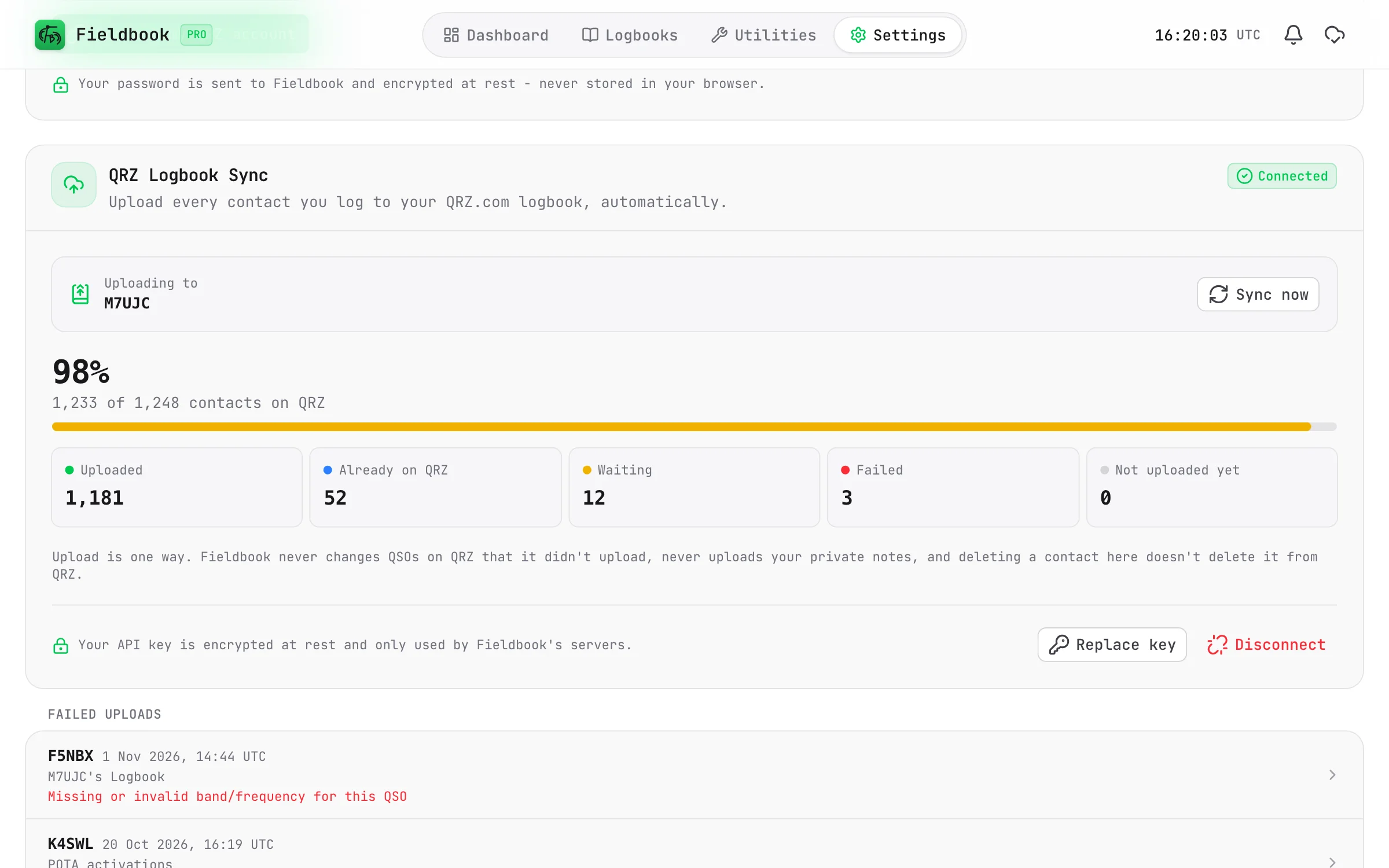
Each contact has one of these statuses:
| Status | What it means |
|---|---|
| Uploaded | Fieldbook sent the contact to QRZ. |
| Already on QRZ | QRZ already had this QSO, so Fieldbook did not change it. |
| Waiting | The contact is in the queue. It goes to QRZ soon. |
| Failed | Fieldbook could not send the contact. Fieldbook shows the reason and what to do. |
| Not uploaded yet | Fieldbook has not tried to send the contact yet. |
| Off for this logbook | The logbook of the contact does not upload to QRZ. |
See the status of one contact
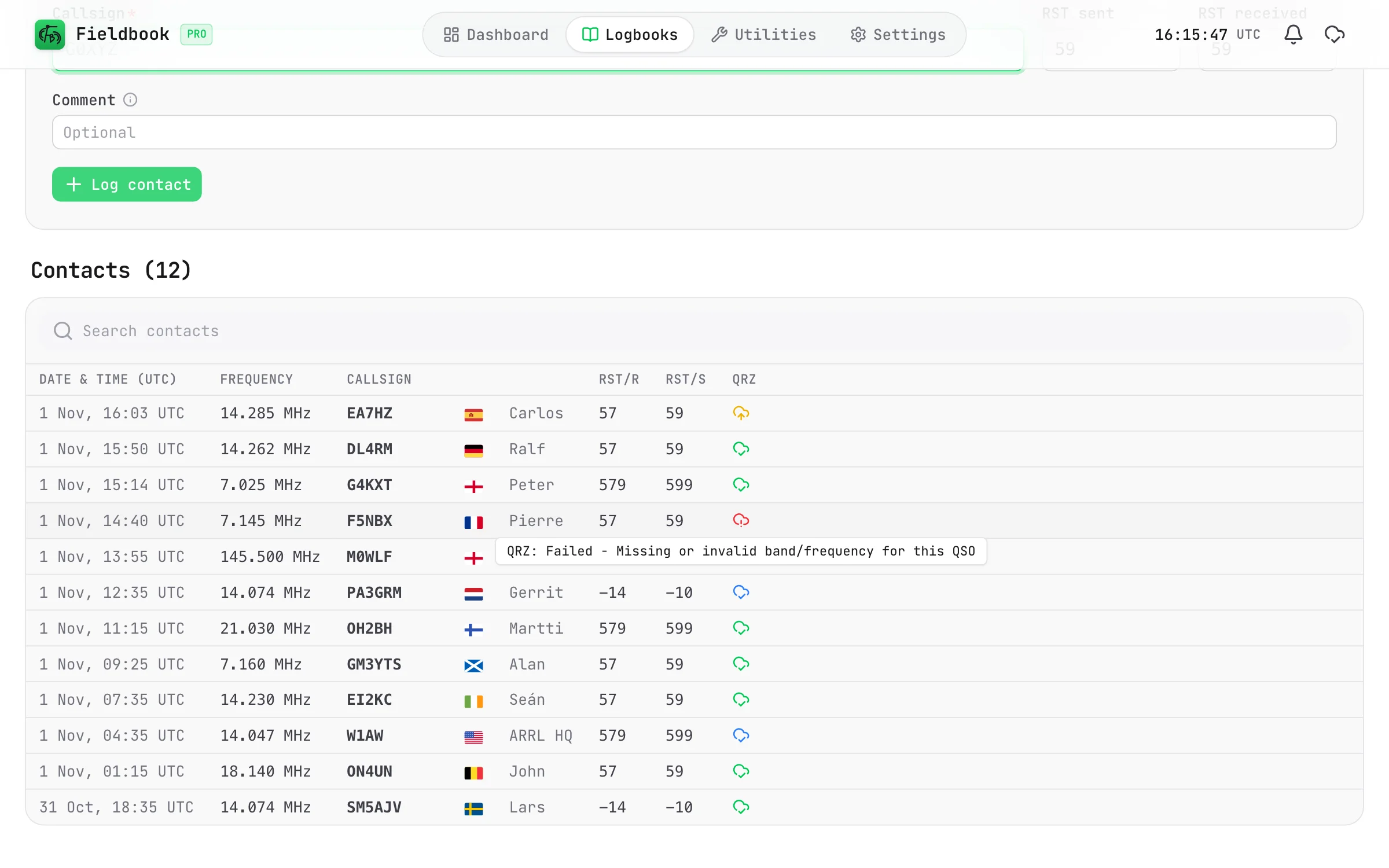
When QRZ Logbook Sync is connected, the contacts list has a cloud icon for each contact. The colour of the icon shows the status:
- Green - uploaded.
- Blue - already on QRZ.
- Amber - waiting.
- Red - failed.
- Grey - not uploaded yet.
- Grey, with a line through it - the logbook does not upload to QRZ.
On a computer, put the pointer on the icon to see the status in words.
For all the details of one contact, open it and select the status button at the top of the page. It is next to the history button. The button is red if the upload failed.
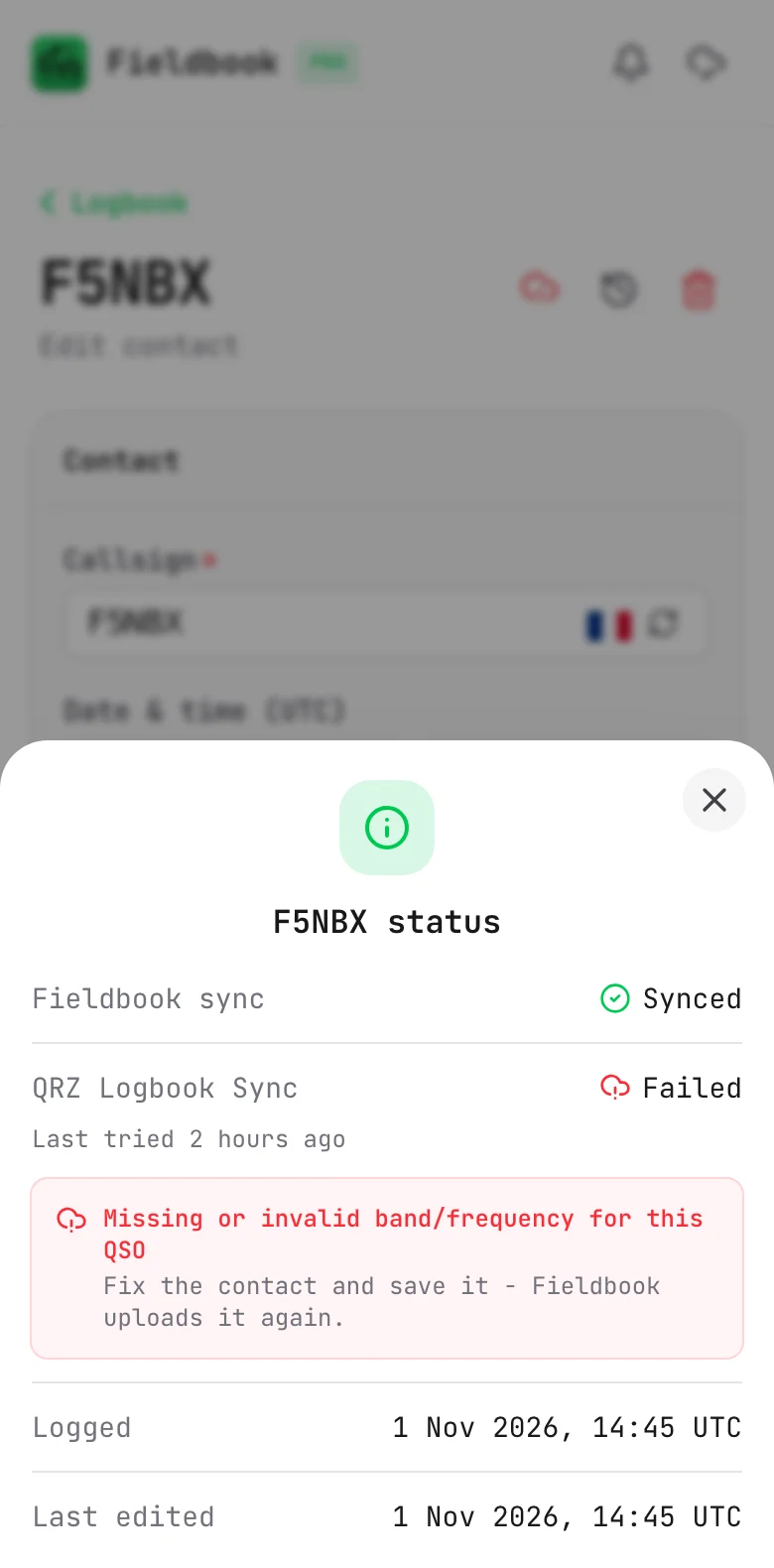
The status comes to your device when it syncs, so you can see it offline too. It can be a few minutes behind the settings page.
Fix a failed upload
The status of the contact shows the reason and what to do. Edit the contact only if QRZ rejected it.
QRZ usually rejects a contact because a value is missing or not correct, for example the band or the mode.
- In the Failed uploads list, select the contact. You can also open it from your logbook.
- Correct the contact.
- Save the contact.
Fieldbook sends the contact again after you save it. To try all the failed and waiting contacts again, select Sync now.
Contacts that are already on QRZ
QRZ can already have some of your QSOs. For example, you uploaded an ADIF file to QRZ before you used Fieldbook.
Fieldbook sends each contact to QRZ. If QRZ already has the same QSO, Fieldbook does not change it. Thus, you do not get duplicate QSOs, and QRZ keeps any confirmations. These contacts show as Already on QRZ.
Edit and delete contacts
- When you edit a contact that Fieldbook uploaded, Fieldbook updates the QSO on QRZ.
- If you change the callsign, band, mode or time of that contact, QRZ sees a different QSO. Fieldbook adds the new QSO and deletes the old one. A confirmation of the old QSO does not move to the new QSO.
- Fieldbook never changes a QSO that was on QRZ before you connected.
- When you delete a contact in Fieldbook, the QSO stays on QRZ. To remove it, delete it on QRZ.
Log offline
Fieldbook sends contacts to QRZ from its server, not from your device. A contact that you log offline goes to QRZ after your device syncs it.
Disconnect
- Go to Settings > QRZ.
- In the QRZ Logbook Sync section, select Disconnect.
- Select Disconnect again to confirm.
Fieldbook stops the uploads and deletes your API key. The QSOs that are already on QRZ stay there.
If your Fieldbook Pro subscription ends, the uploads stop. You can still see the status and disconnect.