Logging
Import ADIF
Bring your log over from another app with ADIF files.
Most logging apps can export an ADIF file (.adi or .adif). You can import these files into a Fieldbook logbook.
Import a file
- Open the logbook to import into.
- Open the logbook menu and select Import ADIF.
- Select Choose ADIF files, or drop the files onto the page. You can select more than one file.
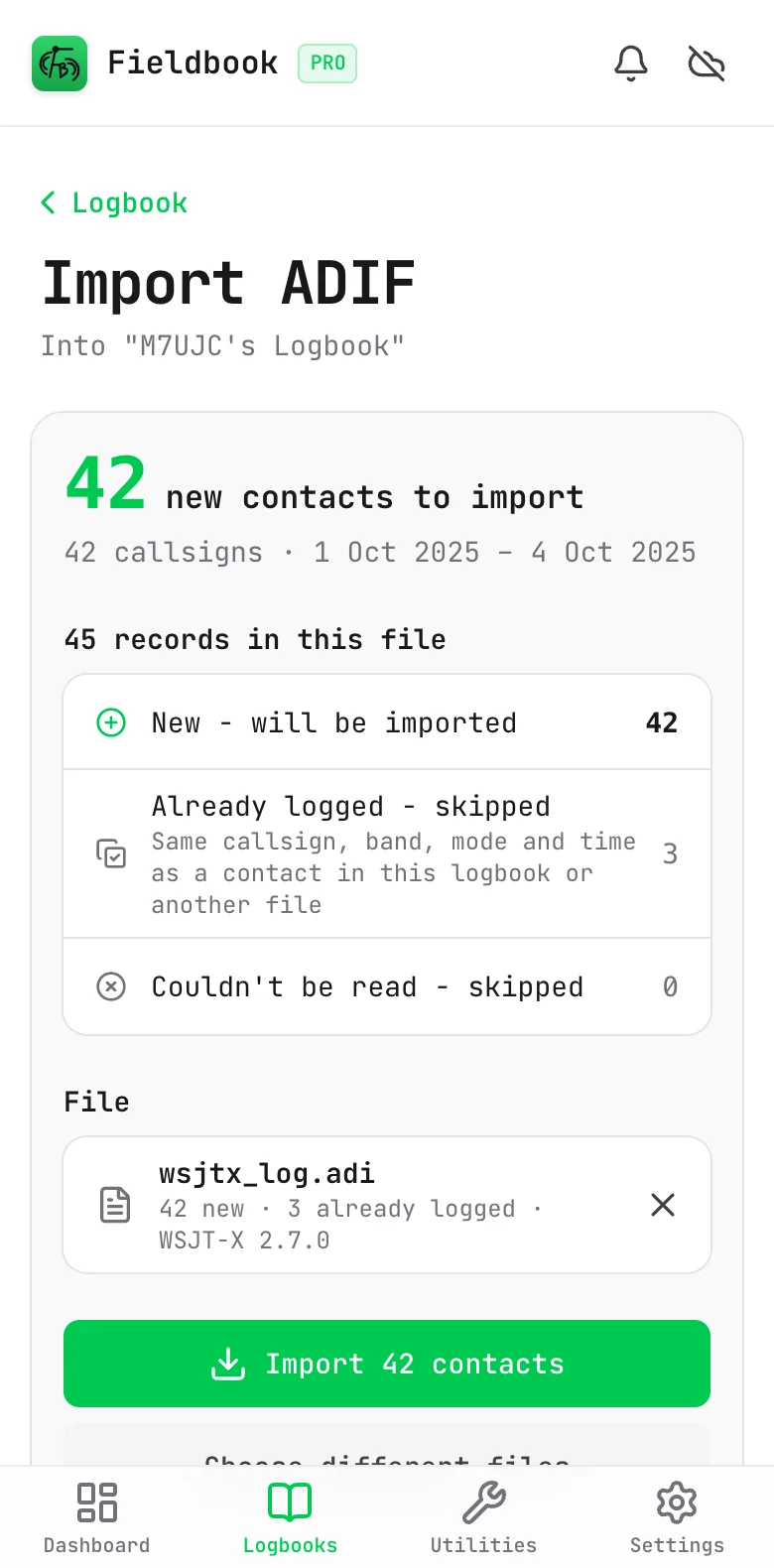
- Examine the summary. It shows the number of new contacts, and the callsigns and dates that they cover.
- Select Import.
The summary puts each record in the files into one of three groups:
- New: Fieldbook imports these.
- Already logged: the contact is already in the logbook, or is in more than one file. It has the same callsign, band, mode and time. Fieldbook skips it.
- Couldn't be read: the record is not a valid contact. Fieldbook skips it.
To remove a file from the import, select the remove button next to it. When the import is done, Fieldbook shows the number of contacts that it imported.
Records that Fieldbook cannot read
If a record in the file is not a valid contact, Fieldbook skips it. To see each of these records and the reason, select Show unreadable records in the summary.
Import history
Fieldbook keeps a record of each file that you import. To see it, open the logbook menu and select Import history. You can also select View import history when an import is done.
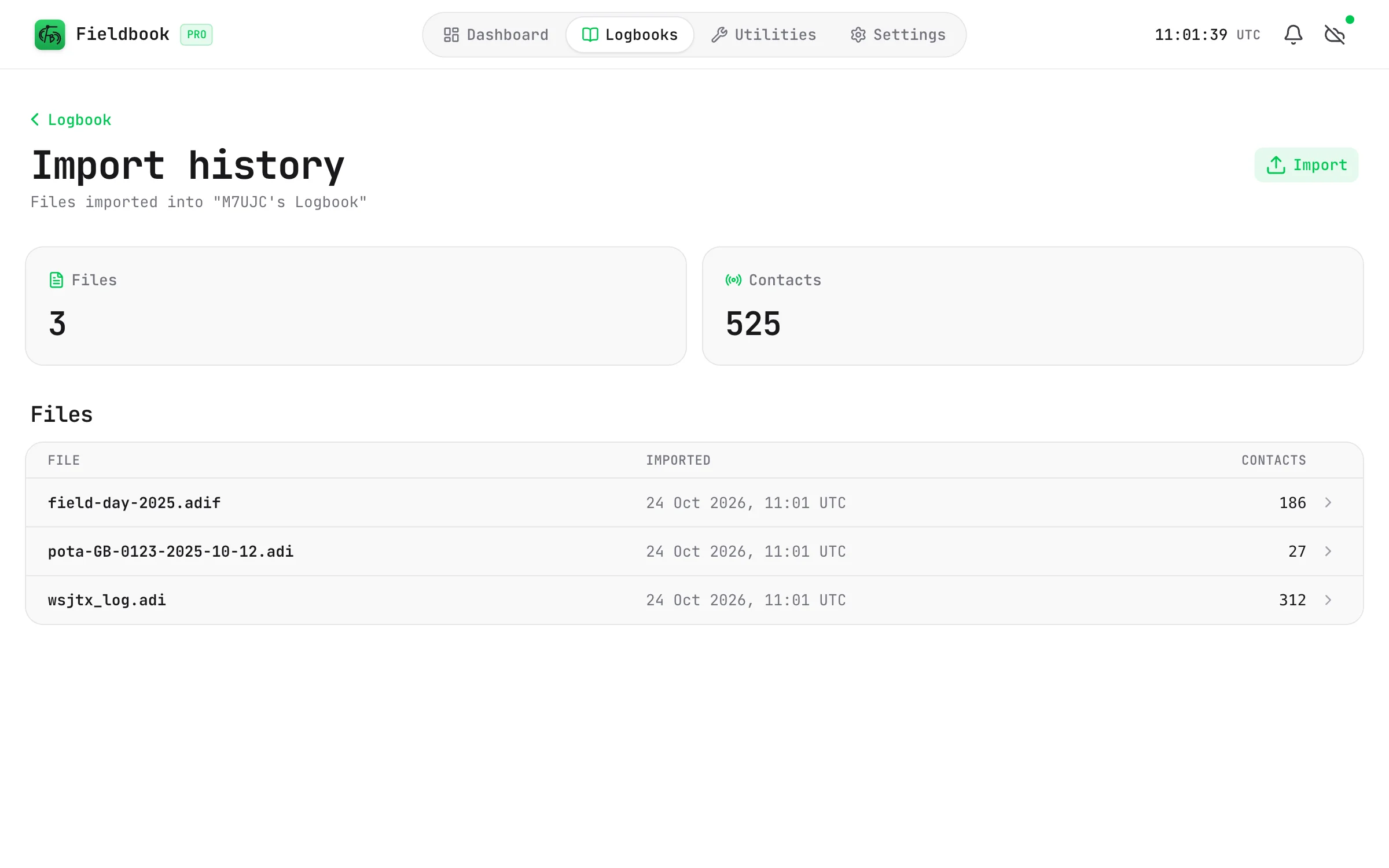
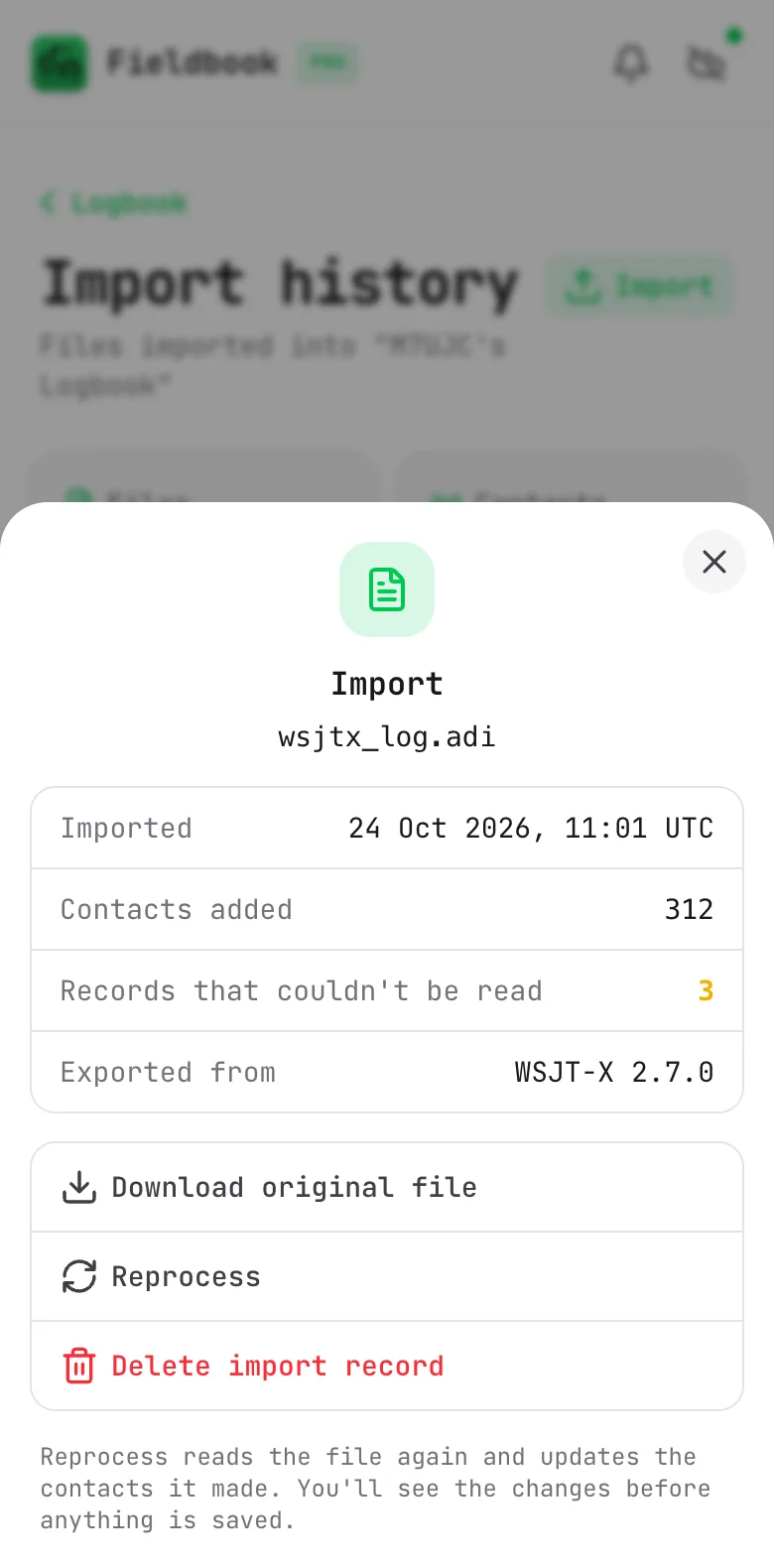
The list shows each file, the number of contacts that it added, and when you imported it. Select a file to see its details. You can then:
- Download original file: get the file again.
- Reprocess: Fieldbook reads the file again and updates the contacts that it made. It shows you the changes before it applies them.
- Delete import record: remove the file from the list. This does not delete the contacts.